
IOC Hunter: Structured Indicators from Security Reporting
IOC Hunter reads the security publications your team would otherwise skim by hand and turns them into structured, searchable data. It parses write-ups into verified posts with the IPs, hosts, hashes, and malware references pulled out, so you can start an investigation with context already attached instead of copying indicators out of a blog.
Indicators here link straight into the rest of the platform: a post ties to a Threat Actor and a Malware family, an extracted host often matches a C2 Infrastructure server or an AttackCapture directory, and you can pull the whole stream as a download from Feeds. Drop any indicator into Search to pivot further.
Open IOC Hunter from the Hunting group in the sidebar. It has these sub-sections: Overview, Posts, IPs, and Hosts.
Overview
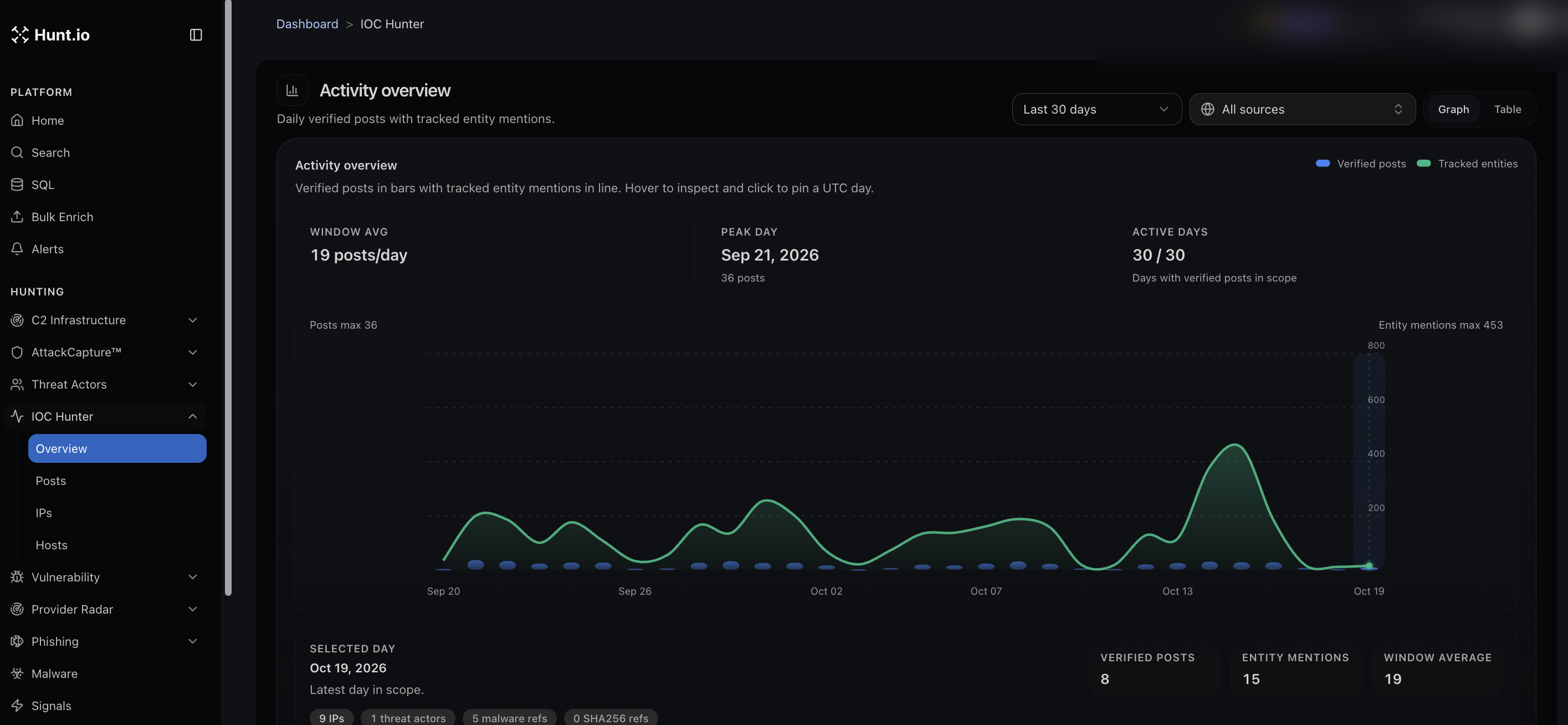
The Overview is an activity view. It charts daily verified posts against tracked entity mentions over a window you choose, with a running average, the peak day, and how many days in the window had activity. Switch between graph and table, and filter by source. It tells you, at a glance, how much reporting is flowing and when it spiked.
Posts
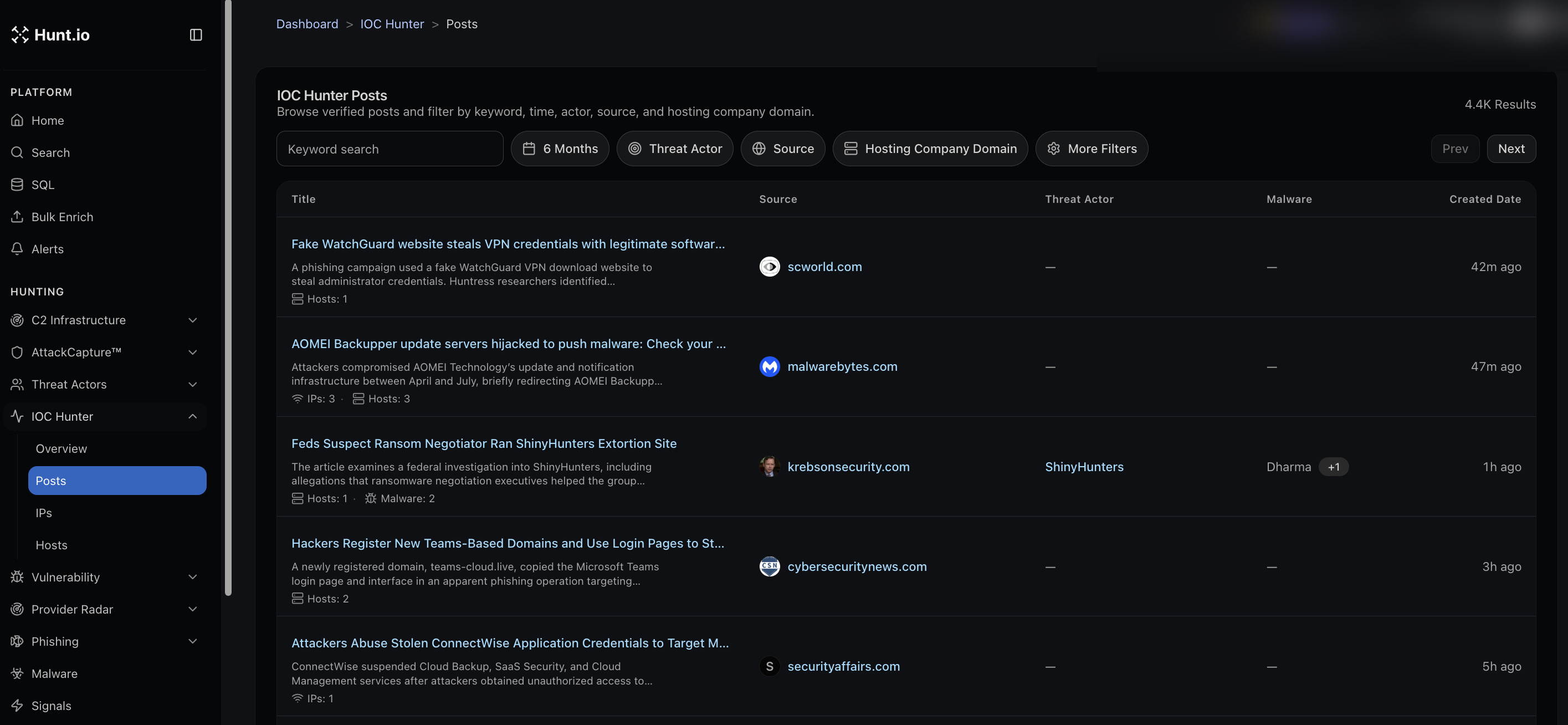
Posts is the core list. Each entry shows the article title, its source, the threat actor if one is tied to it, the malware referenced, and when it was created. Under each title you see quick counts of the IPs, hosts, and malware pulled from that piece. Filter by keyword, time, threat actor, source, or hosting company domain. This is where you find the reporting behind an indicator, and the indicators behind a report.
IPs and Hosts
The IPs and Hosts sub-sections flip the view around. Instead of starting from an article, you start from an indicator and see the reporting and context attached to it. Use these when you have an IP or host in hand and want to know what has been written about it.
How to use it
Filter Posts by a threat actor to pull every tracked write-up about it, with indicators already extracted.
Watch the Overview for spikes, then drill into the day that spiked.
Cross-check an IP from your own telemetry against the IPs view to see if it appears in public reporting.
IOC Hunter: Structured Indicators from Security Reporting
IOC Hunter reads the security publications your team would otherwise skim by hand and turns them into structured, searchable data. It parses write-ups into verified posts with the IPs, hosts, hashes, and malware references pulled out, so you can start an investigation with context already attached instead of copying indicators out of a blog.
Indicators here link straight into the rest of the platform: a post ties to a Threat Actor and a Malware family, an extracted host often matches a C2 Infrastructure server or an AttackCapture directory, and you can pull the whole stream as a download from Feeds. Drop any indicator into Search to pivot further.
Open IOC Hunter from the Hunting group in the sidebar. It has these sub-sections: Overview, Posts, IPs, and Hosts.
Overview
The Overview is an activity view. It charts daily verified posts against tracked entity mentions over a window you choose, with a running average, the peak day, and how many days in the window had activity. Switch between graph and table, and filter by source. It tells you, at a glance, how much reporting is flowing and when it spiked.
Posts
Posts is the core list. Each entry shows the article title, its source, the threat actor if one is tied to it, the malware referenced, and when it was created. Under each title you see quick counts of the IPs, hosts, and malware pulled from that piece. Filter by keyword, time, threat actor, source, or hosting company domain. This is where you find the reporting behind an indicator, and the indicators behind a report.
IPs and Hosts
The IPs and Hosts sub-sections flip the view around. Instead of starting from an article, you start from an indicator and see the reporting and context attached to it. Use these when you have an IP or host in hand and want to know what has been written about it.
How to use it
Filter Posts by a threat actor to pull every tracked write-up about it, with indicators already extracted.
Watch the Overview for spikes, then drill into the day that spiked.
Cross-check an IP from your own telemetry against the IPs view to see if it appears in public reporting.
IOC Hunter: Structured Indicators from Security Reporting
IOC Hunter reads the security publications your team would otherwise skim by hand and turns them into structured, searchable data. It parses write-ups into verified posts with the IPs, hosts, hashes, and malware references pulled out, so you can start an investigation with context already attached instead of copying indicators out of a blog.
Indicators here link straight into the rest of the platform: a post ties to a Threat Actor and a Malware family, an extracted host often matches a C2 Infrastructure server or an AttackCapture directory, and you can pull the whole stream as a download from Feeds. Drop any indicator into Search to pivot further.
Open IOC Hunter from the Hunting group in the sidebar. It has these sub-sections: Overview, Posts, IPs, and Hosts.
Overview
The Overview is an activity view. It charts daily verified posts against tracked entity mentions over a window you choose, with a running average, the peak day, and how many days in the window had activity. Switch between graph and table, and filter by source. It tells you, at a glance, how much reporting is flowing and when it spiked.
Posts
Posts is the core list. Each entry shows the article title, its source, the threat actor if one is tied to it, the malware referenced, and when it was created. Under each title you see quick counts of the IPs, hosts, and malware pulled from that piece. Filter by keyword, time, threat actor, source, or hosting company domain. This is where you find the reporting behind an indicator, and the indicators behind a report.
IPs and Hosts
The IPs and Hosts sub-sections flip the view around. Instead of starting from an article, you start from an indicator and see the reporting and context attached to it. Use these when you have an IP or host in hand and want to know what has been written about it.
How to use it
Filter Posts by a threat actor to pull every tracked write-up about it, with indicators already extracted.
Watch the Overview for spikes, then drill into the day that spiked.
Cross-check an IP from your own telemetry against the IPs view to see if it appears in public reporting.
Frequently asked questions
Frequently asked questions
Can I filter reporting by threat actor or source?
Can I pull IOC Hunter data out automatically?
Where do IOC Hunter indicators come from?
Related
Related
Hunt adversary infrastructure in real time. Surface C2 servers, enrich IOCs,
and map attacker activity at scale with our unified threat hunting platform.

Hunt adversary infrastructure in real time. Surface C2 servers, enrich IOCs,
and map attacker activity at scale with our unified threat hunting platform.
Hunt adversary infrastructure in real time. Surface C2 servers, enrich IOCs,
and map attacker activity at scale with our unified threat hunting platform.